
Note: Application scripts cannot be modified and saved to the original location. However, application scripts can be modified and saved as a new script.
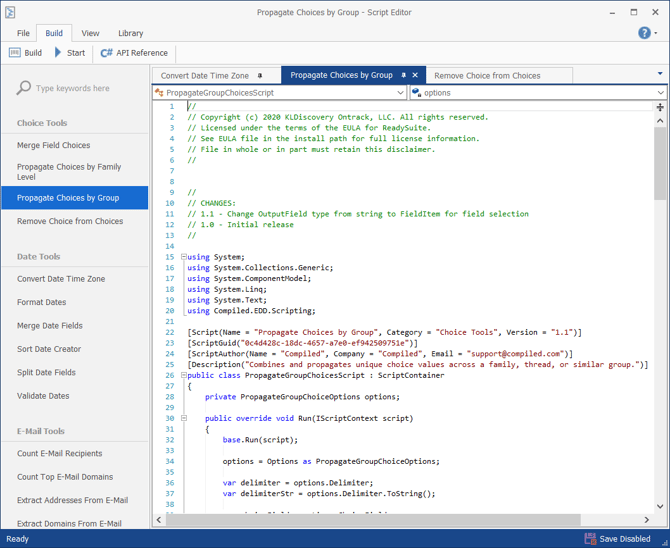
To view the ReadySuite Script Editor
- In the ReadySuite ribbon, click Scripts > Script Editor.
To create a new script
- On the Script Editor, click File > New.
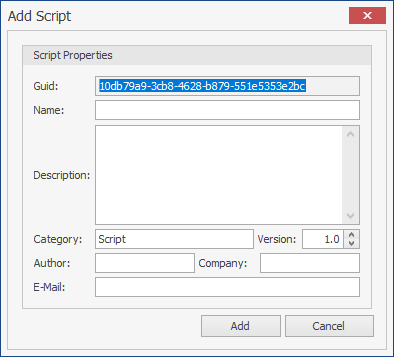
- On the Add Script dialog box, in the Script Properties section, enter the following:
- Guid: Provided automatically and cannot be edited.
- Name: Name of the Script field.
- Description: Overview of the script's function.
- Category: Category of new script which is added to the Script tab in ReadySuite.
- Version: Version number of the script.
- Author: Person who created the script (optional).
- Company: Company of the person who created the script (optional).
- E-Mail: Email of the person who created the script. (optional).
- Click Add.
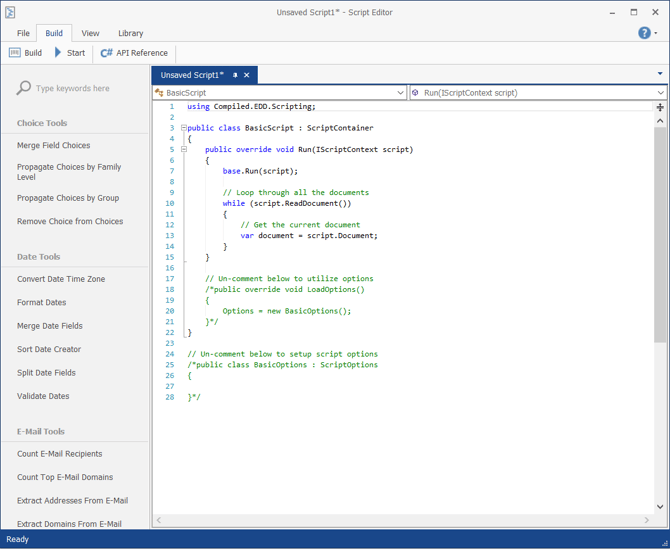
- Use the BasicScript template to code the new script with C#.
- To validate the code, click Build > Build. A Script Editor dialog box appears if any errors present and the Error List itemizes necessary changes.
- Click File > Save As > Browse.
- Use the Save As dialog box to select the folder location for the script and File name, then click Save.
To run a script from the Script Editor
- On the Script Editor, click select the script you want to run in the Script list pane.
- Click Build > Start to begin running the script.