
Timeline is available in both the Cull and Review modules, providing instant visual context for temporal analysis without requiring repeated manual searches.
Timeline enables you to:
- Spot critical time windows instantly – Visualize document activity over time to immediately identify gaps, spikes, and key event periods that text-based filtering simply can't reveal.
- Reduce review time and cost – Select date ranges directly on the timeline to eliminate repeated manual searches and zero in on what matters most.
- Interact directly with your data – Easily toggle between monthly and daily views for both high-level and granular document-level analysis.
Timeline lives directly in the Facet Explorer alongside other filtering attributes such as Correspondence, NLP, and standard filters.
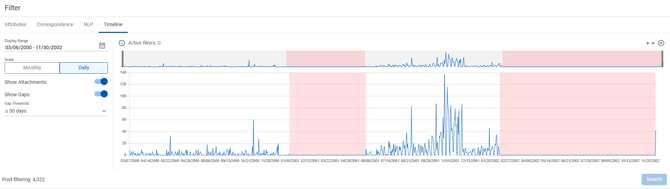
Timeline Display (Cull and Review)
Timeline Components
- Filter Attributes Panel
- Timeline appears as a tab alongside Attributes, Correspondence, and NLP
- Access Timeline by clicking the Timeline tab in the filter panel
- Document Distribution Chart (Main Chart - Bottom)
- Visual representation of document volume over time
- Based on family date of documents in your current document list
- Blue bars indicate document volume for each time period
- Pink/highlighted areas indicate gaps in document activity
- Time Period Selector (Top Chart)
- Gray sliding bars at each end allow you to focus on specific time ranges
- Drag the bars to narrow or expand the time window displayed in the main chart
- Provides context for where your selected period falls within the overall timeline
- Display Range Controls
- Date Range Selector: Use the calendar icon to set specific start and end dates
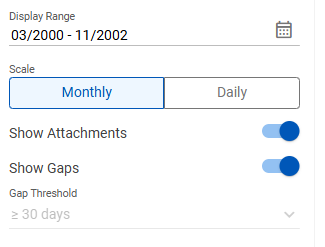
- Scale Toggle: Switch between Monthly and Daily views
- Monthly: View document distribution by month (default)
- Daily: View document distribution by individual days for more granular analysis
- Display Options
- Show Attachments toggle: Include or exclude attachments from the timeline
- Show Gaps toggle: Highlight gaps in document activity (appears in pink)
- Gap Threshold: When viewing daily data, set the threshold for gap detection (e.g., 2 days, 5 days, 30 days)
- Post Filtering Count
- Displays the total number of documents in the current filtered view
- Updates dynamically as you adjust timeline selections
Understanding Family Date
Timeline is based on the family date of documents in your document list. This ensures consistency across document families and attachments.
What is Family Date?
- The family date represents the parent document's date
- It is derived from one of the following metadata fields (in order of priority):
- Sent Date
- Received Date
- Last Modified Date
- Created Date
Why Family Date?
- Provides a single, consistent date for each document family
- Prevents attachments with different dates from skewing the visual timeline
- More accurate representation of when document activity occurred
Note: This differs from the previous timeline attribute in Nebula, which was based on default document date and could show different dates for attachments within the same family.
Using Timeline
Viewing Document Activity Over Time
- Navigate to Cull or Review and open any document list.
- In the Filter panel, click the Timeline tab.
- The Timeline displays immediately, showing document distribution based on family date.
- Review the main chart to identify:
- Spikes: Periods of high document activity
- Gaps: Periods with little or no document activity (shown in pink when enabled)
- Patterns: Overall distribution trends
Switching Between Monthly and Daily Views
To view monthly distribution (default):
- Ensure the Scale toggle is set to Monthly.
- The chart displays document volumes grouped by month.
- Use this view for high-level temporal analysis.
To view daily distribution:
- Click the Scale toggle and select Daily.
- The chart displays document volumes for each individual day.
- Use this view for granular analysis of specific time periods.
Adjusting the Time Window
Using the Time Period Selector (top chart):
- Locate the gray sliding bars at the top of the Timeline.
- Drag the left bar to adjust the start of the visible time period.
- Drag the right bar to adjust the end of the visible time period.
- The main chart updates to show only the selected time range in detail.
Using the Date Range Selector:
- Click the calendar icon next to the date range display.
- Select a specific start date.
- Select a specific end date.
- Click Apply to update the timeline view.
Identifying and Analyzing Gaps
To show gaps in document activity:
- Toggle Show Gaps to ON (enabled).
- Gaps appear as pink/highlighted areas on the timeline.
- These indicate periods where no documents (or fewer than threshold) exist.
To adjust gap threshold (Daily view only):
- Switch to Daily view.
- Use the Gap Threshold dropdown to select the minimum number of days to consider a gap.
- Options typically include: 2 days, 5 days, 10 days, 30 days, etc.
- The timeline updates to highlight only gaps meeting the threshold. ![Gap Detection - Screenshot]
Use Case Example: In a commercial dispute, identifying a gap in communications between key custodians during a critical negotiation period could indicate destroyed or missing documents.
Including or Excluding Attachments
- Locate the Show Attachments toggle.
- Toggle ON to include attachments in the document count.
- Toggle OFF to show only parent documents.
- The timeline updates automatically to reflect your selection.
Tip: Excluding attachments can help focus on primary communications rather than supporting files.
Selecting Date Ranges for Filtering
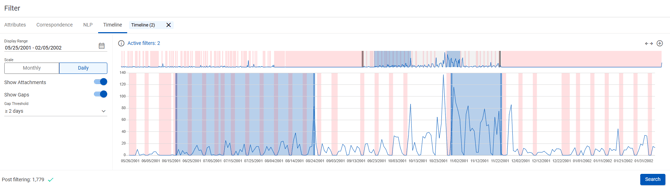
One of Timeline's most powerful features is the ability to interact directly with the visualization to filter your document set.
Selecting a Date Range on the Timeline
- On the main timeline chart, click and drag across the date range you want to select.
- The selected time period is highlighted.
- Release to apply the selection.
- Your document list automatically filters to show only documents within the selected date range.
Using Selected Dates in Searches
Once you've selected a date range on the timeline:
- The date filter applies to your current document list immediately.
- You can combine this date filter with other filters:
- Add custodian filters
- Apply keyword searches
- Use ECAi categories
- Layer additional facet filters
- The Post Filtering count shows how many documents remain after all filters are applied.
Adding Multiple Date Ranges
To add additional date ranges:
- Click the Add Date Range button.
- Use the date selector to define an additional time period.
- Multiple date ranges are combined with OR logic (documents matching any selected range are included).
Clearing Date Selections
- To clear a timeline date selection, click the X on the Filter section.

Common Use Cases
Early Case Assessment
Identifying Key Time Periods:
- Open your document set in Cull.
- Navigate to Timeline in the Facet Explorer.
- Use the monthly view to identify spikes in document activity.
- Zero in on these periods using the time period selector.
- Switch to daily view to pinpoint exact dates of interest.
- Select the relevant date range to focus your early analysis.
Example: A law firm handling a real estate dispute quickly identified a period of heightened activity followed by a communication gap, helping them meet early case assessment deadlines while reducing the scope of documents to review.
Validating Collection Completeness
Checking for Gaps:
- After loading a collection, open Timeline.
- Enable Show Gaps to visualize periods with no documents.
- Compare gaps against known events or expected communication periods.
- Identify whether gaps indicate:
- Missing data
- Deletion of documents
- Natural periods of inactivity
Example: For incoming productions, filter by production batch and use Timeline to verify complete date coverage for requested time periods.
Analyzing Third-Party Productions
To analyze documents received from opposing parties:
- Create a saved search filtering to a specific production batch.
- Open Timeline for that search.
- Check for expected date coverage.
- Identify any suspicious gaps in the production.
- Use findings to request additional documents or clarification.
Note: Timeline works with any documents that have family date populated. For third-party productions, ensure at least one date field (sent, received, modified, or created) is mapped during processing.
Narrowing Document Sets by Data Type
To view timeline for specific data types:
- Run a search filtering to your desired data type:
- Emails only
- Slack messages
- Teams chats
- Meeting transcripts
- Open Timeline to see activity patterns for that specific data type.
- This helps understand communication patterns across different platforms.
Example: Compare email activity timeline versus Teams chat timeline to understand how communication shifted between platforms over time.
Supporting Chronology Development
Creating Case Chronologies:
- Use Timeline to identify key dates and periods of activity.
- Select specific date ranges where important events occurred.
- Export or review documents from those periods to build your chronology.
- Timeline provides visual confirmation of document availability for each chronology entry.
Best Practices
Start with Monthly View
- Begin with the monthly view to see overall patterns
- Identify periods of interest before switching to daily view
- This approach is faster and provides better context
Use Gap Detection Strategically
- Enable gap detection when collection completeness is a concern
- Adjust gap threshold based on your matter's communication patterns
- Daily gap analysis is most useful for short, intensive matters
- Monthly gap analysis works better for longer cases
Combine with Other Filters
- Timeline is most powerful when combined with other filters
- Example workflow:
- Filter to key custodians
- Use Timeline to identify relevant periods
- Add keyword filters
- Review the focused document set
Test on Small Samples First
- When working with large datasets, test Timeline on a filtered subset
- Verify family date is populated correctly
- Ensure gaps align with expected patterns
Document Your Findings
- Take screenshots of Timeline views showing gaps or spikes
- Include these in validation reports or case summaries
- Use Timeline visuals to support meet-and-confer discussions
Troubleshooting
No Data Appears on Timeline
Cause: Documents may not have family date populated.
Solution:
- Family date is automatically calculated from sent, received, modified, or created dates
- For third-party productions, ensure at least one date field was mapped during loading
- Check document metadata to verify date fields are present
Timeline Shows Unexpected Gaps
Cause: Gaps may be legitimate periods of inactivity, or they may indicate missing data.
Solution:
- Review known case events against the timeline
- Check whether gaps align with weekends, holidays, or known inactive periods
- For collections, verify custodian data was fully captured
- For productions, consider requesting additional documents for gap periods
Gap Threshold Option Not Available
Cause: Gap threshold is only available in Daily view.
Solution:
- Switch from Monthly to Daily view
- The gap threshold dropdown will appear
- Adjust the gap duration as needed for your analysis
Selected Date Range Doesn't Update Document List
Cause: Other filters may be preventing documents from appearing, or the selection didn't register.
Solution:
- Try selecting the date range again
- Check the Post Filtering count to see total documents
- Review other active filters that might be excluding documents
- Clear all filters and try Timeline selection alone
FAQs
Q: Does Timeline work with all document types?
A: Yes, Timeline works with any documents that have a family date, which is calculated from available date metadata. This includes emails, office documents, chat messages, and any other files with date information.
Q: Can I export Timeline visualizations?
A: Currently, you can take screenshots of Timeline views for reports and documentation. Export of interactive Timeline data is not available, but you can export the underlying document lists with date fields.
Q: How does Timeline handle documents without date information?
A: Documents without any date metadata (sent, received, modified, or created) will not appear on the Timeline. These are rare, as most documents have at least a created or modified date.
Q: Can I see Timeline for multiple saved searches at once?
A: Timeline displays based on your current document list or search results. To compare different searches, you'll need to switch between them and view Timeline separately for each.
Q: Does changing the Timeline view affect my saved searches?
A: No, Timeline is a visualization and filtering tool. Your saved searches remain unchanged. However, if you select a date range on Timeline and then save a new search, that date filter will be included in the new saved search.
Q: What's the difference between Timeline and the old date filter?
A: Timeline provides visual, interactive date filtering based on family date, while traditional date filters use text-based inputs and may use different date fields. Timeline instantly shows patterns, gaps, and spikes that aren't visible with text filtering alone.
Q: Can I use Timeline to filter by date ranges across multiple years?
A: Yes, Timeline can display and filter across any date range present in your document set. Use the time period selector (top chart) to zoom into specific years or periods of interest.
Q: How is Timeline different from the Correspondence filter?
A: Correspondence filters show communication patterns between custodians. Timeline shows when documents were created or sent, regardless of who was involved. Both can be used together for powerful filtering.
Q: Does Timeline work in Review workflows?
A: Yes, Timeline is available in Review and works the same way as in Cull. You can use it to focus review on specific time periods or to provide temporal context during document review.
Q: Will Timeline automatically update if I add new documents to my repository?
A: Yes, Timeline reflects the current document list. If you reload your document list after new documents are added, Timeline will update to include the new data.
For additional assistance with Timeline, contact Nebula Support or consult with your Project Manager.