
To view Nebula Big Data
-
Click Preserve > Nebula Big Data > File Browser.

-
In the Nebula Big Date list, select a store type (File or Email) to view its contents.
Note: The specific store types available depends on the type of data in your Nebula Big Data.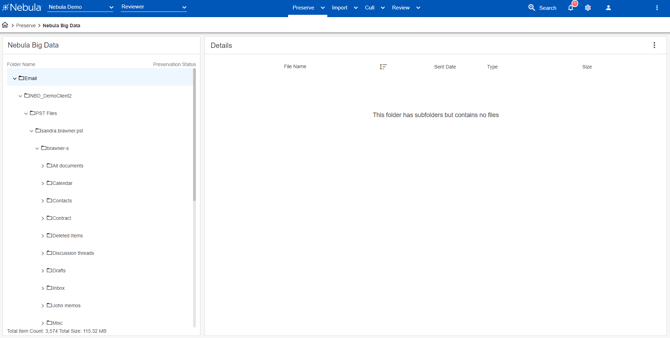
-
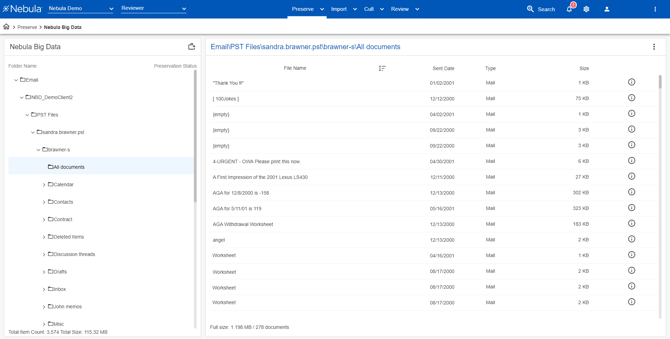
Click a store to view its contents, including its path, size, and number of documents, in the Details panel (named for the selected folder).
-
To view details of an individual file or email, click its Info icon
 to open its File Info message box.
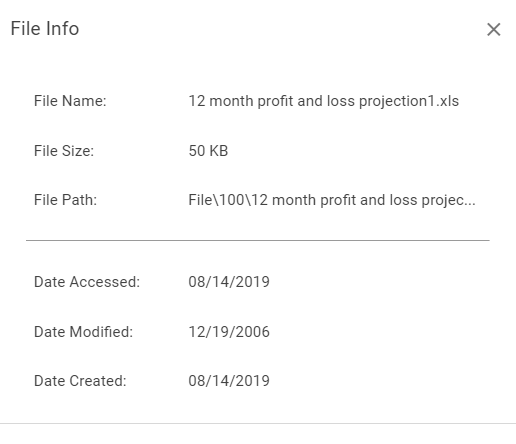
Sample File information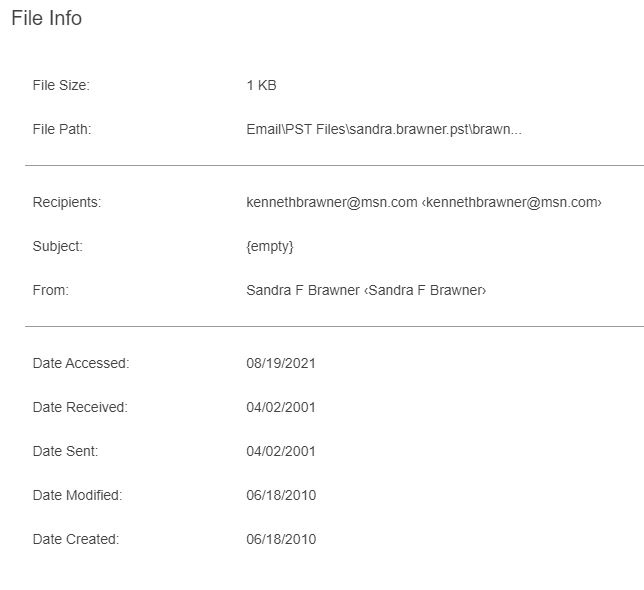
Sample Email information
-
 to open its File Info message box.
To add a folder to the Nebula Big Data list
-
In the Nebula Big Data page Details header, click the Action icon
 and select Add New Folder.
-
In the Add Folder dialog box, enter a Name for the new folder and click Create.
 and select Add New Folder.