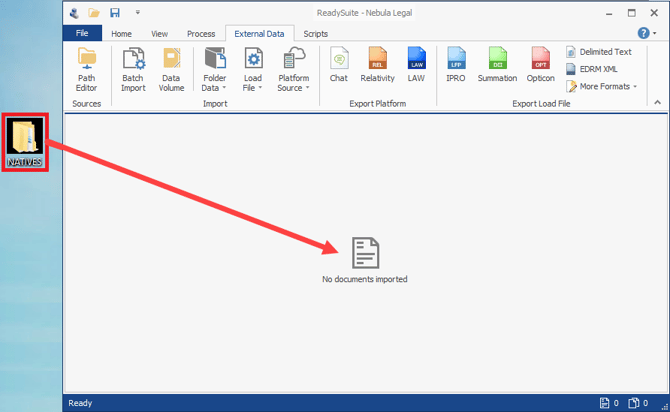
To drag image, native, or text files into ReadySuite
- On the Welcome page New Project section, click Empty.
- Drag the folder with the image, native, or text files you want to import to the ReadySuite display panel.
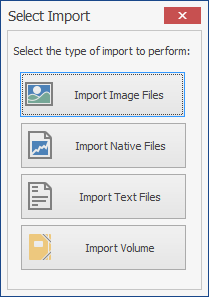
- On the Select Import dialog box, select the type of file you want to import.
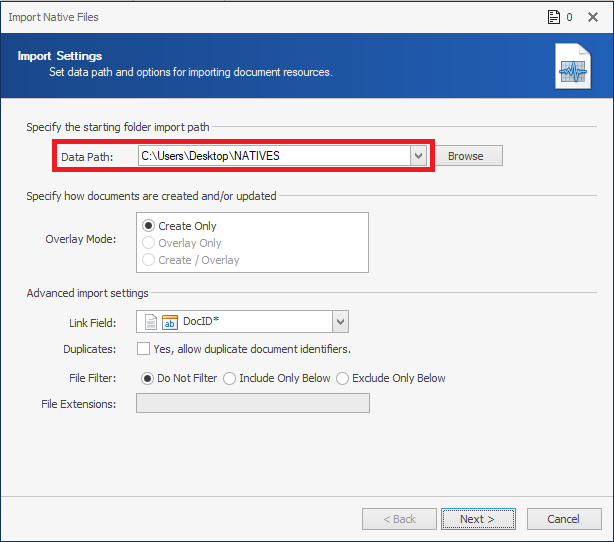
The corresponding wizard opens with Import Settings auto-filled to the location of the files.
To drag DAT files into ReadySuite
- Drag the DAT file you want to import to the ReadySuite display panel.
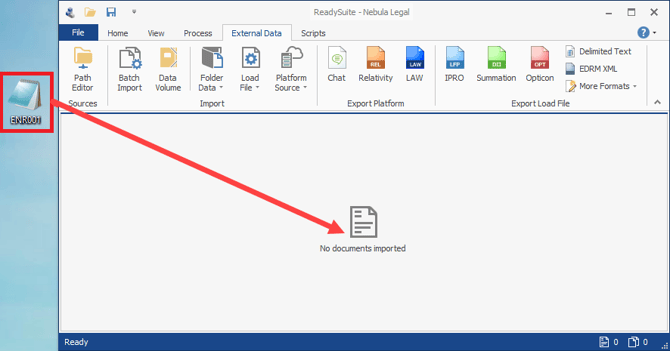
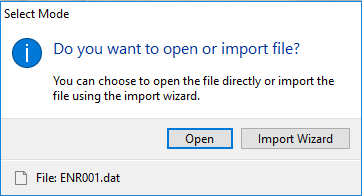
- On the Select Mode dialog box, choose to Open the files directly of import the file using the Import Wizard.
If you select Open, the imported DAT files are listed in the Document Grid View.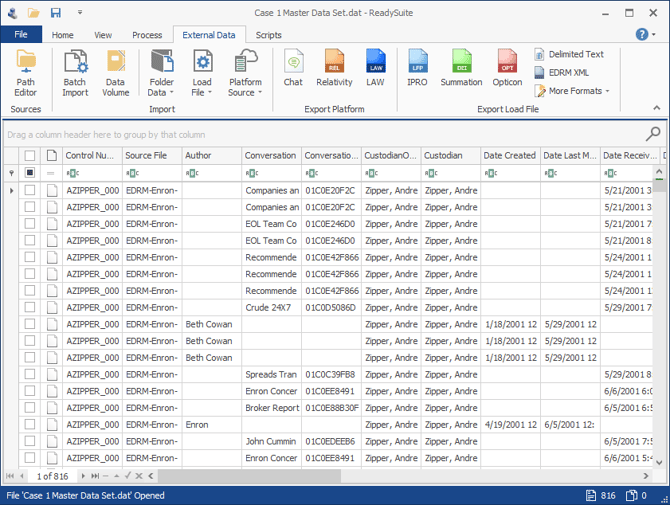
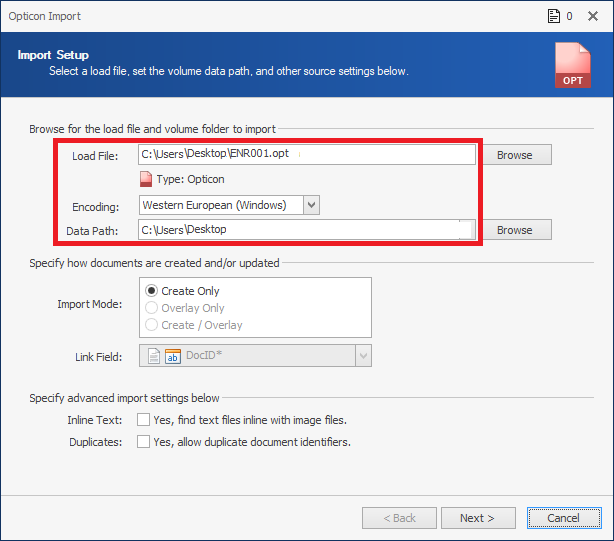
If you select Import Wizard, the Import Delimited Text wizard opens with Import File auto-filled to the location of the files.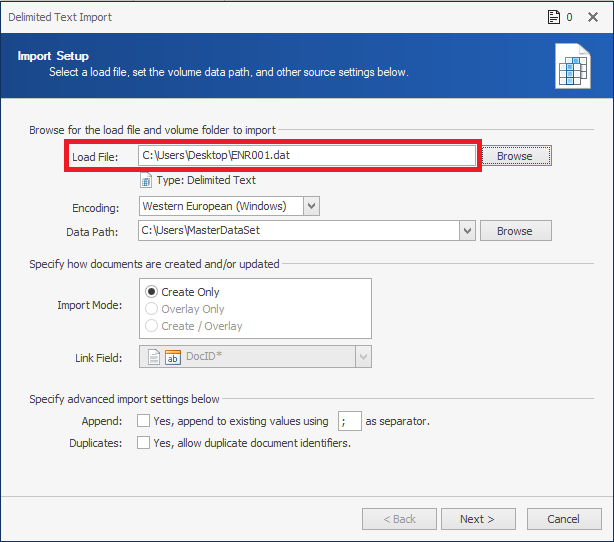
To drag load files into ReadySuite
- Drag the load file you want to import to the ReadySuite display panel.
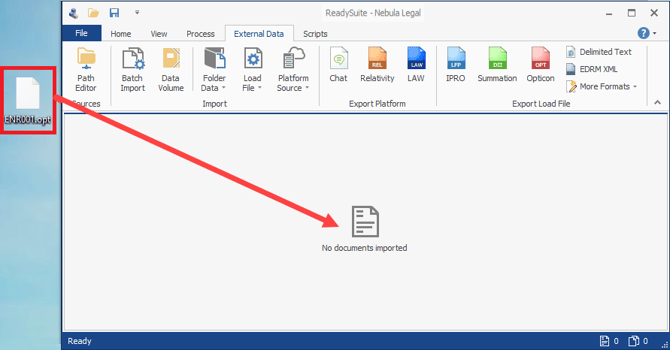
The Import Load File wizard opens with Import Settings auto-filled to the location of the files.