
Note: Links can also be set when importing DAT files with the Delimited Import wizard on the Import Field Types page.
Linking Groups
Group and family links can be set or reset for document records. For example, Production BegBates fields can be linked to Production BegAttach group to assign document families.
You can also link by group Type (whether the group field is a Group ID, Parent ID, or a Simple Range). Selecting the simple range field sets groups exclusively on the group field value rather than requiring a match to the Document ID field.
Note: If more custom logic is required, use the Assign Family from Field script to assign and populate family links based on a ParentID or GroupID field.
To assign links to a group
- In the Document Grid View, right-click the column header of the fields you want to link.
- On the Column menu, select Assign Links, then choose Set Group Links.
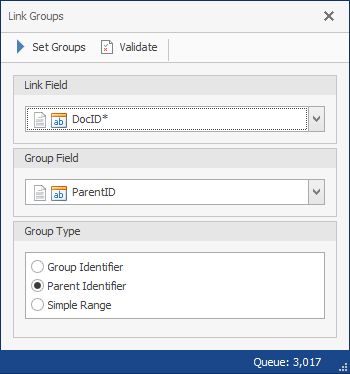
- Choose the Link Field (defaults to the column of the field in step 1).
- Choose the Group Field.
- Choose the Group Type for the type of family field.
- Group ID
- Parent ID
- Simple Range: Set groups exclusively on the group field value – not requiring a match to the Document ID field.
- To test the links, click Validate and view the results in the Event Log.
- Click Set Groups.
Linking Resources
You can set or reset the values for Native, Page, Text, links from fields you’ve imported, overlaid, or edited in ReadySuite.
To set Native links
- In the Document Grid View, right-click the column header of the fields you want to link.
- On the Column menu, select Assign Links, then choose Set Native Links.
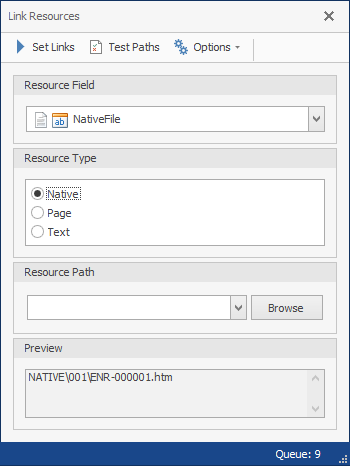
- Choose the Resource Field (defaults to the column of the field in step 1).
- Choose the Resource Type (defaults to
Native). - If your resource path is a relative path, use Resource Path to browse to a root data path where the files are located. View the full path in Preview.
- Click Test Path to verify your resource path.
- Click Set Links.
To set Page links
- In the Document Grid View, right-click the column header of the fields you want to link.
- On the Column menu, select Assign Links, then choose Set Page Links.
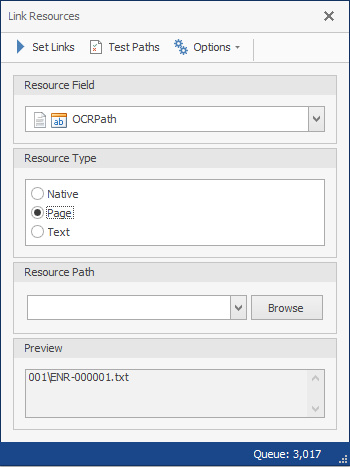
- Choose the Resource Field (defaults to the column of the field in step 1).
- Choose the Resource Type (defaults to
Page). - If your resource path is a relative path, use Resource Path to browse to a root data path where the files are located. View the full path in Preview.
- Click Test Path to verify your resource path.
- Click Set Links.
To set Text links
- In the Document Grid View, right-click the column header of the fields you want to link.
- On the Column menu, select Assign Links, then choose Set Text Links.
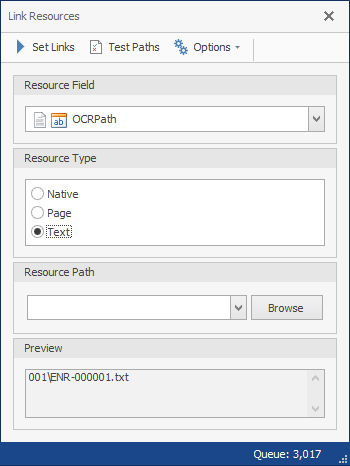
- Choose the Resource Field (defaults to the column of the field in step 1).
- Choose the Resource Type (defaults to
Text). - If your resource path is a relative path, use Resource Path to browse to a root data path where the files are located. View the full path in Preview.
- Click Test Path to verify your resource path.
- Click Set Links.
To verify the resource path
- Click Test Paths and view the results in the Event Log
- Click Options and select Skip Empty Links and Skip Missing Links as desired.
| Option | Selected |
Cleared |
|---|---|---|
| Skip Empty Links | Ignore document without link. | Update the link and clear the value. |
| Skip Missing Links | Ignore missing links. | Test for missing links. |