
The Keyword Highlighting Navigator allows you to:
- Navigate quickly between keyword hits – Move through search results with forward/backward navigation arrows
- Selectively highlight terms – Choose which keyword categories and specific terms to display
- View hit counts – See the number of times each term appears in the document
- Toggle highlighting on/off – Control visibility of highlighted terms with a single click
Key Benefits
Faster Document Review
Navigate through hundreds or thousands of search hits efficiently using navigation buttons, dramatically increasing the pace at which users can review documents containing keyword hits.
Selective Highlighting
Choose exactly which keyword categories and specific terms to highlight, reducing visual clutter and focusing on what matters most for your review.
Consistent User Interface
Experience the same highlighting and navigation functionality in both the Text and HTML document viewers, providing a unified workflow across all document types in Nebula.
Visual Hit Context
See term counts and navigate directly to each occurrence, ensuring you don't miss important instances of your keywords within lengthy documents.
Keyword Highlighting Navigator Interface
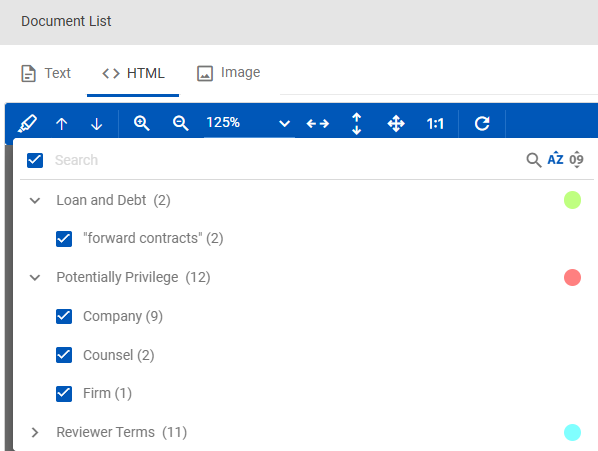
The Keyword Highlighting Navigator appears in the Document Viewer toolbar when viewing documents in Cull or Review.

Navigator Components
- Highlighter Icon

- Click to open the Keyword Highlighting Navigator dropdown menu
- Located in the document viewer toolbar
- Available for both Text and HTML document views
- Category and Term Dropdown Menu
- Displays all keyword categories that have been created, run, and have assigned highlight colors
- Only categories with assigned highlight colors appear in the Navigator
- Each category shows associated terms that appear in the current document
- Category-level toggle: Enable or disable all terms within a category at once
- Term-level checkboxes: Select or deselect individual terms for highlighting
- Term Hit Counts
- Each term displays the number of times it appears in the document
- Format: "Term name (X)" where X is the number of hits
- Example: "President (5)" indicates 5 occurrences in the document
- Free-Text Search Bar (CTRL+F)
- Access by pressing CTRL+F on your keyboard or by selecting the search icon in the Navigation toolbar

- Searches within the current document content
- Appears within the Navigator dropdown menu
- Overrides the browser's native CTRL+F functionality
- Search results are highlighted and can be navigated using arrows
- Access by pressing CTRL+F on your keyboard or by selecting the search icon in the Navigation toolbar
- Navigation Control Buttons
- Forward/Next arrow (↓): Jump to the next keyword hit in the document
- Backward/Previous arrow (↑): Jump to the previous keyword hit in the document
- Navigate through hits in the order they appear in the document
- Works only with currently selected/highlighted terms
- Highlight Single Category Toggle Button
- Quickly disable all highlights within a single category without deselecting individual terms by selecting the colored circle for that category
- Re-enable to restore previous term selections
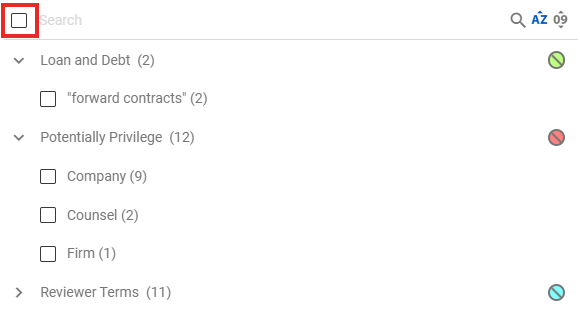
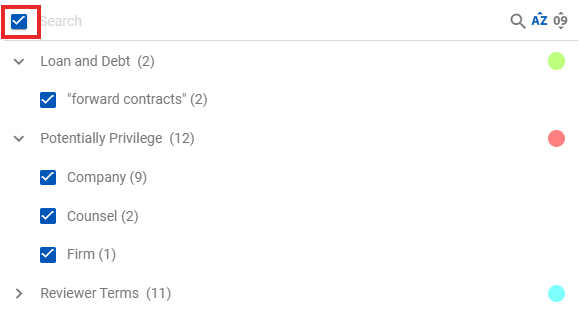
- Highlight All / Unhighlight All Button
- Highlight All: Quickly select and highlight all terms across all categories
- Unhighlight All: Quickly deselect all terms to remove all highlighting
- Provides quick control without toggling individual terms


Setting Up Keywords for Navigation
Before using the Keyword Highlighting Navigator, you must first create and run keyword categories in the Keywords module.
Prerequisites
- Create Keyword Categories:
- Navigate to Cull > Keywords or Review > Keywords
- Create one or more keyword categories
- Assign a highlight color to each category (REQUIRED)
- Add keywords to each category
Important: Only categories with assigned highlight colors will appear in the Keyword Highlighting Navigator. Categories without colors are excluded from the Navigator.
- Run Keywords:
- Execute the keyword run to identify hits across your documents
- This must be completed before highlighting will appear in documents
- Keywords must finish processing (Complete status) to be available
For detailed instructions on creating and running keywords, see the Keywords Help Documentation.
Highlight Color Requirements
- Each keyword category must have a highlight color assigned
- Categories without highlight colors will not appear in the Navigator
- Colors help visually distinguish between different keyword categories
Understanding What Appears in the Navigator
Key behavior:
- All categories with assigned highlight colors are shown, even if they have no hits in the current document
- Only terms that appear in the current document are shown under each category
- If a category has no terms present in the document, it shows with no terms listed below it
- Terms are displayed with their hit count: "CEO (3)" means 3 occurrences
Note: When a term does not appear in the document, it does not appear in the dropdown menu. This keeps the menu focused on relevant content.
Default Highlighting View
First time opening a document:
- All terms present in the document are highlighted and selected by default
- This provides immediate visibility of all keyword hits
- You'll see all categories expanded with their terms checked
- The document displays all highlights in their respective colors
Navigating Between Keyword Hits
Using navigation arrows:
- Ensure at least one term is selected for highlighting.
- Click the Forward/Next arrow (↓) to jump to the next keyword hit in the document.
- Click the Backward/Previous arrow (↑) to jump to the previous keyword hit.
- The document automatically scrolls to and highlights the current hit.
Note: If you have disabled terms in the dropdown (unchecked them), the Navigator will skip those hits during navigation. Only checked (highlighted) terms are included in the navigation sequence.
Using Free-Text Search (CTRL+F)
The Keyword Highlighting Navigator includes an integrated free-text search capability that takes over your browser's default search function.
To search for text within the document:
- Click within the document viewer to give it focus.
- Press CTRL+F on your keyboard.
- The search bar appears within the Navigator dropdown menu.
- Type the text you want to find.
- The search looks within the document content (not the dropdown list itself).
- Results are highlighted in yellow and you can navigate through them using the navigation arrows. Note the first instance of the searched keyword will be displayed in orange, and if there is only one instance of that keyword, that will be displayed in orange as well.
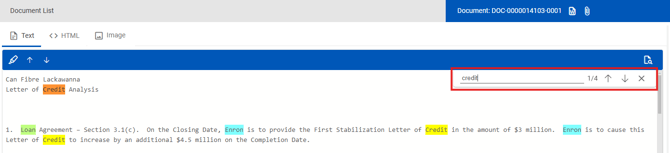
Important: Nebula's CTRL+F takes over the browser's native CTRL+F selection to provide integrated document search. The search bar will appear within the document term dropdown list but searches the document content.
Understanding CTRL+F behavior:
- Searches the current document only
- Does not search indexed keyword terms—searches actual document text
- Search terms are temporarily highlighted in yellow for the session, except for the selected instance of that keyword which is displayed in orange.
Navigator Behavior Across Documents
Session Persistence and "Sticky" Selections
Your term selections remain consistent as you move between documents during a review session. This is called "invisible stickiness."
How sticky selections work:
- The dropdown list selection is static for your user session
- Term selections persist at the term level, not just category level
- When you disable "banana" in one document, it stays disabled in subsequent documents
- Exception: If a term doesn't appear in a document, it's not shown in the dropdown
- When you return to a document where that term appears, it reappears with your previous selection status
Example workflow:
- Document 1: You disable highlighting for the term "banana"
- Document 2: Doesn't contain "banana"
- "banana" doesn't appear in the Navigator dropdown (expected behavior)
- Document 3: Contains "banana"
- "banana" appears in the dropdown again
- "banana" remains unchecked (your previous setting persists—invisible stickiness)
- This pattern continues throughout your session
Tip: Start your review session by configuring your preferred term selections in the first document. These selections will carry through your entire session, appearing and disappearing as terms are present in each document.
Moving Between Text and HTML Views
In Review:
- The Keyword Highlighting Navigator works for both Text and HTML views
- Your term selections persist when switching between views
- Highlighting appears appropriately in both formats
- Navigation functions identically in both views
In Cull:
- The Navigator is available in the document viewer
- Functionality is consistent with Review module
Filtering and Sorting in the Navigator
The Navigator dropdown includes features to help manage long lists of categories and terms.
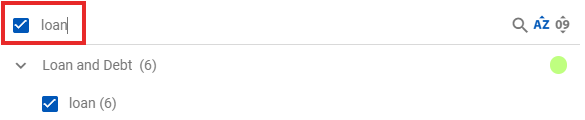
Filtering Terms
To filter the term list:
- Open the Navigator dropdown.
- Use the filter field at the top of the dropdown.
- Type to search for specific terms within the list.
- The dropdown filters show only matching terms.
- Clear the filter to restore the full list.
Sorting Terms
To sort terms:
- Look for the sort options in the Navigator dropdown.
- Click to toggle sorting options:
- Alphabetically ascending (A to Z)
- Alphabetically descending (Z to A)
- Numerically ascending
- Numerically descending
- Sorting helps locate specific terms quickly in long keyword lists.
- Sort order persists for your session.
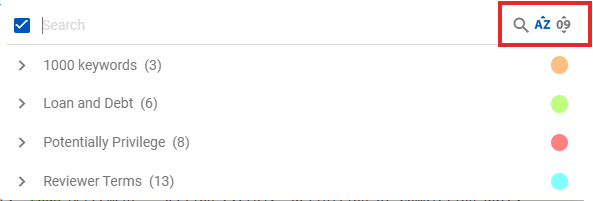
Note: The dropdown list supports filtering of itself as well as sorting alphanumerically and numerically in both directions.
Managing Overlapping Terms
When terms appear in multiple categories:
- Example: "dog" appears in both "Keywords Set 1" and "Keywords Set 2"
- Highlighting shows the latest term color (based on when the term was created)
- Visual order follows term creation order
- Both instances appear in the Navigator dropdown under their respective categories
- You can control which category's highlighting to display using category toggles
Example scenario:
- "dog" in "Animals - Pets" (highlighted green)
- "dog" in "Animals - Wildlife" (highlighted blue)
- If "Animals - Wildlife" was created later, "dog" displays with blue highlighting
- The same instance of "dog" in the document will visually show the latest term's color
Advanced Features
Infinite Scroll Text Viewer
As part of the Keyword Highlighting Navigator enhancement, the text viewer has been updated to infinite scroll.
Benefits:
- Smoother scrolling experience through long documents
- Better integration with navigation arrows
- More natural reading flow
- Improved performance with highlighted terms
Exporting Keywords Between Cull and Review
The Keyword Highlighting Navigator uses keywords created in the Keywords module. Keywords don't automatically transfer between Cull and Review, but you can export and import them.
To export keywords from Cull to Review:
- Navigate to Cull > Keywords.
- Select the keyword category you want to export.
- Click the Action icon and select Export Category.
- A .txt file downloads containing all keywords and aliases.
- Navigate to Review > Keywords.
- Create a new category or select an existing one.
- Click Add Keywords > Import File.
- Select the exported .txt file.
- Run keywords in Review to enable highlighting.
Note: You must run keywords in each module where you want highlighting to appear. Exporting creates a copy of the keyword list but doesn't transfer the execution results.
Common Use Cases
Privilege Review
Highlighting privileged terms:
- Create a keyword category for privilege terms (attorney, privileged, confidential, attorney-client, work product, etc.).
- Assign a distinct highlight color (e.g., red).
- Run keywords across your review set.
- During review, use the Navigator to jump between potential privilege terms.
- Quickly assess privilege claims by seeing context around each hit.
Benefits:
- Faster privilege identification
- Visual confirmation of privilege term density
- Easy navigation through potentially privileged content
- Consistent review approach across documents
Multi-Issue Review
Organizing by case themes:
- Create separate keyword categories for each case issue.
- Assign different colors to each category (e.g., green for financial issues, blue for personnel).
- During review, toggle categories on/off to focus on specific issues.
- Use navigation arrows to move through hits for the active issue.
- Document coding becomes faster when you can isolate and review by topic.
Quality Control
Verifying keyword accuracy:
- Use the Navigator to review all instances of critical search terms.
- Navigate hit-by-hit to ensure proper coding and context.
- Use free-text search (CTRL+F) to find related terms not in your keyword list.
- Spot-check documents with high hit counts for relevance.
Hot Document Identification
Finding key documents quickly:
- Enable all relevant keyword categories.
- Use hit counts to prioritize review (documents with higher hits warrant closer attention).
- Navigate through hits to understand document significance.
- Make note of documents with unusual patterns or clustering of terms.
Name and Entity Verification
Finding people and entities:
- Create keyword categories for key custodians, executives, and entities.
- Use the Navigator to jump between name mentions.
- Verify correct identification and context.
- Note variations or misspellings that should be added to keywords.
Best Practices
Configure Once at Session Start
- Set up your preferred term selections at the beginning of your review session
- Use Highlight All, then uncheck categories/terms you don't need
- Your selections will persist across documents
- This one-time setup saves time throughout your session
Use Category Toggles Strategically
- When focusing on one issue, disable other categories using category-level toggles
- Re-enable all categories periodically to check for overlaps
- Color-coded highlights help distinguish between different themes
- Remember: category toggles affect all terms within that category
Combine with Free-Text Search
- Use CTRL+F to find variations of keywords not in your list
- Search for related concepts that might indicate relevance
- Combine keyword highlighting with free-text search for comprehensive review
- Add frequently searched terms to your keyword categories
Review Hit Count Context
- High hit counts may indicate highly relevant documents
- Zero hits after keyword run suggests the document may not be relevant to key terms
- Use hit counts to prioritize which documents to review first
- Very high hit counts (100+) may indicate boilerplate or form documents
Troubleshooting
Navigator Icon Not Appearing
Cause: Keywords may not have been run, categories lack highlight colors, or you don't have permission.
Solution:
- Verify keywords have been created and run in the Keywords module
- Check that keyword categories have assigned highlight colors (required)
- Ensure your user permissions include access to Keywords
- Confirm you're viewing a supported document type (Text or HTML)
- Try refreshing the document viewer
No Terms Appear in Dropdown
Cause: The current document may not contain any of your keyword terms.
Solution:
- This is expected behavior—only terms present in the document appear in the Navigator
- Verify keywords were run across this document's dataset
- Check the Keywords module to confirm keywords have Complete status (green circle with check mark)
- Try opening a different document known to contain keywords
- Review your keyword scope settings—ensure they include this document set
Categories Appear But No Terms Listed
Cause: The category has no terms that appear in the current document.
Solution:
- This is normal—the category displays but shows no terms because none exist in this document
- Try a different document to see if terms appear there
- Review which keywords are in this category, they may not match this document's content
Highlighting Not Visible
Cause: The master highlight toggle may be disabled, no terms are selected, or the category lacks a highlight color.
Solution:
- Check that the Highlight Toggle button is enabled (not grayed out)
- Ensure at least one term checkbox is selected
- Verify the keyword category has a highlight color assigned in the Keywords module
- Try clicking Highlight All to reset selections
- Check if you're viewing the correct document format (Text or HTML)
Navigation Arrows Don't Work or Skip
Cause: No terms are currently selected, or you've unchecked terms you're trying to navigate.
Solution:
- Select at least one term by checking its checkbox
- Verify hits exist by checking the hit count display
- Remember: If you have disabled terms in the dropdown, the Navigator will skip those hits
- Check that keyword processing completed successfully
CTRL+F Opens Browser Search Instead
Cause: Focus may not be on the document viewer window.
Solution:
- Click within the document viewer to give it focus
- Try CTRL+F again to activate Nebula's integrated search
- If browser search continues to appear, try clicking directly on the document text first
Terms Appear Twice in Dropdown
Cause: The same term exists in multiple keyword categories (overlapping terms).
Solution:
- This is expected behavior when terms belong to multiple categories
- Each instance relates to a different category
- The latest term's color will display in the document
- Manage which category's highlighting to show by toggling categories on/off
- Consider consolidating duplicate terms into a single category if this causes confusion
Selections Don't Persist Between Documents
Cause: Session settings may have been reset, or you logged out and back in.
Solution:
- Term selections should persist within a single review session
- If you logged out and back in, you'll need to reselect terms
- Make your term selections at the start of each review session
- Use Highlight All as a starting point if needed
- Check for session timeout if selections unexpectedly reset
Highlighting Color Is Wrong or Unexpected
Cause: When a term appears in multiple categories, the latest term's color is displayed.
Solution:
- This is expected for overlapping terms in multiple categories
- The document shows the color of the term that was created most recently
- Review which categories contain the term
- Toggle categories on/off to see which one is controlling the color
- Consider using unique terms per category to avoid color confusion
FAQs
Q: Can I navigate keyword hits in PDF documents?
A: The Keyword Highlighting Navigator works with Text and HTML views. For PDFs, highlighting is available in the extracted text view if text was successfully extracted during processing. Native PDF may have limited support.
Q: Do my term selections save between review sessions?
A: Term selections persist within a single session but reset when you log out. The dropdown list selection is static for your user session only. You'll need to reselect your preferred terms at the start of each new review session.
Q: Can I use the Navigator with search terms from the search builder?
A: No, the Keyword Highlighting Navigator only works with keywords created in the Keywords module. Ad-hoc search terms from the search builder are not included in the Navigator. Search terms are also not shown in the dropdown because they aren't indexed as keywords.
Q: How many keyword categories can I have in the Navigator?
A: There is no strict limit. The Navigator displays all categories with assigned highlight colors. However, for usability, consider consolidating categories if you have many. Remember: categories without highlight colors will not appear in the Navigator.
Q: Will navigation arrows skip terms I've unchecked?
A: Yes, if you uncheck (disable) a term in the Navigator, the navigation arrows will skip those hits. Only checked (highlighted) terms are included in the navigation sequence. This allows you to focus on specific terms during navigation.
Q: Can I export a list of documents with keyword hit counts?
A: Yes, keyword hit information can be exported through the Keywords module reports. See the Keywords documentation for details on generating keyword reports.
Q: Does the Navigator work for documents in production sets?
A: The Navigator works in Review modules. If your production documents are in a Review matter with keywords run, the Navigator will function normally if the keyword categories have assigned highlight colors.
Q: Why can't I see my new keyword category in the Navigator?
A: Verify that: (1) The category has an assigned highlight color, (2) Keywords have been run and completed successfully, and (3) At least one term from that category appears in the current document. Categories without highlight colors are specifically excluded from the Navigator.
Q: What happens if I delete a keyword category while reviewing?
A: If a category is deleted in the Keywords module, its highlights will no longer appear in the Navigator for new documents. Documents currently open may still show highlights until you refresh the view or open a different document.
Q: Can I change highlight colors during a review?
A: You can change highlight colors in the Keywords module settings, but you'll need to reopen documents or refresh the document viewer for the new colors to appear in the Navigator.
Q: Why do some terms show a different color than I assigned?
A: When a term appears in multiple keyword categories (overlapping terms), the document displays the color of the term that was created most recently. Visual order follows term creation order. You can control which category's color displays by toggling categories on/off.
For additional assistance with the Keyword Highlighting Navigator, contact Nebula Support or consult with your Project Manager.