
Content views enable you to browse and navigate documents within the active project. Document panels provide information on the selected document in many ways.
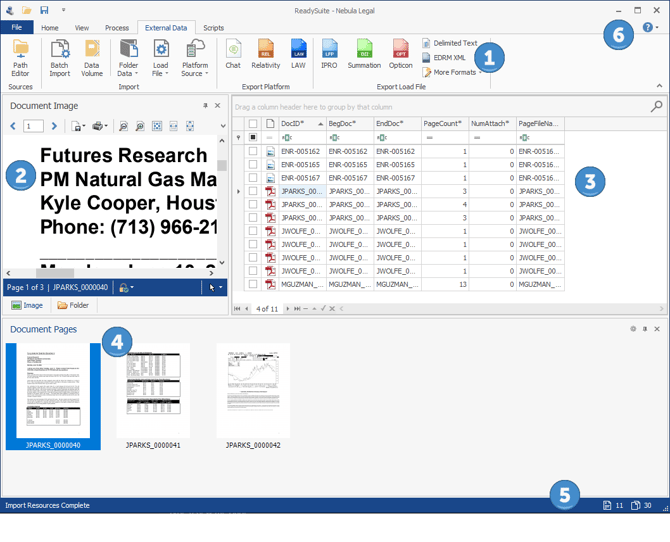
- ReadySuite Ribbon: Actions available in ReadySuite are divided into tabs and groups by functionality.
- Document Panels: Image and Text viewer panels are located on the left by default. Drag panels to relocate.
- Content and Document Grid View: Content area for displaying document data and selecting documents for viewing.
- Document Panels: Pages, Fields, and Family panels are located on the lower edge by default. Drag panels to relocate.
- Status Bar: Total number of documents and pages of the current project.
- Help: Click to register ReadySuite, view online help, send feedback, or contact support.