
The Notifications icon alerts users when specific tasks have been completed, such as printing a document or converting a document to an image, as well as the number of all active uploads.
When tasks are in progress, the icon appears blue  . The number on the Notification icon
 indicates how many tasks have been completed and how many uploads are uncleared for the current user.
Progress bars on the Notifications dialog box display the status of tasks and uploads and update in real time (and also in the background when the dialog box is closed).
To view notifications
On the Nebula menu, click the Notification icon .
On the Tasks tab, view a list of completed tasks.
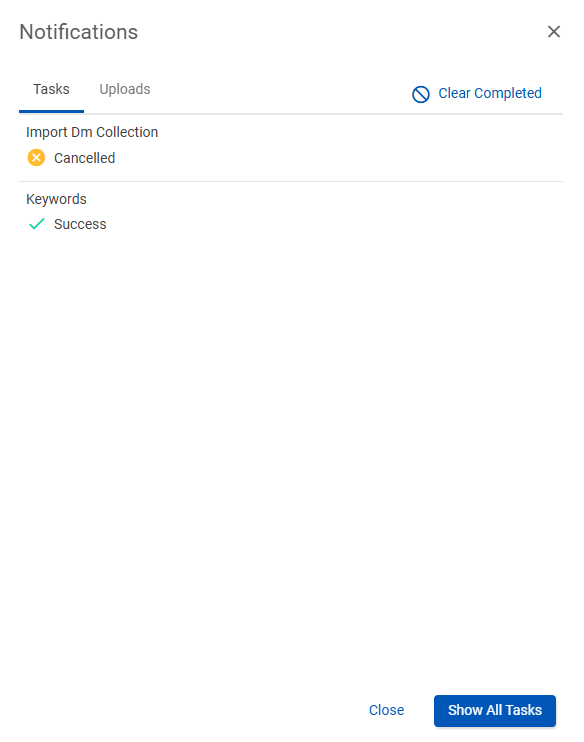
To view the downloaded items, click the Download icon  (when available).
To remove complete tasks from the Notifications dialog box, click Clear Completed.
To view the tasks the Tasks page, click Show all tasks.

On the Uploads tab, view the active uploads divided into two groups -- the uploads for the Current Repository and Other Repositories in which the current user has uploaded files.
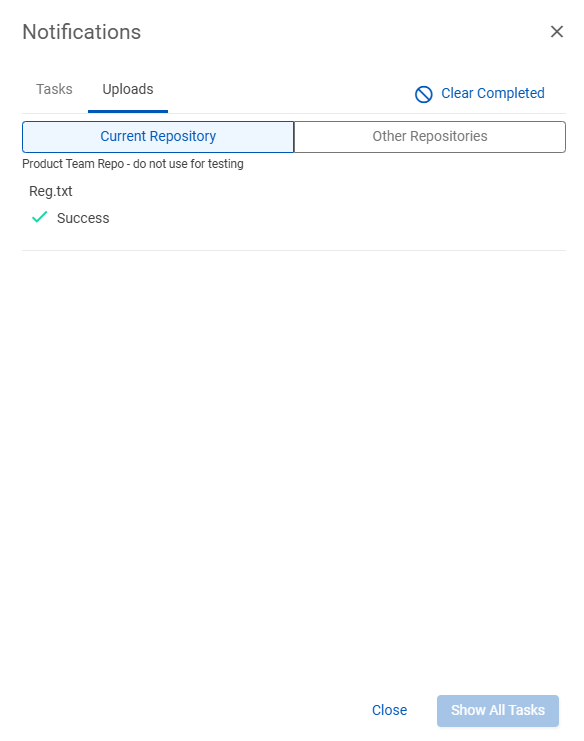
To cancel an upload while Pending or Executing, click the Cancel icon [IMAGE] for the uploading file and on the Cancel Upload dialog box, click Terminate.
To clear files that have finished uploading from appearing on the Uploads tab, click Clear Completed.
To view uploads on the Tasks page, click Show all tasks.