
When viewing the Document Text panel, you can easily change both the field used to populate the view as well as the type of data in that field.
Use the Text Viewer menu to manage the appearance of the image on display, as well as save, print, and redact.
To display the Document Text panel
- In the ReadySuite ribbon, click View > Text Viewer.
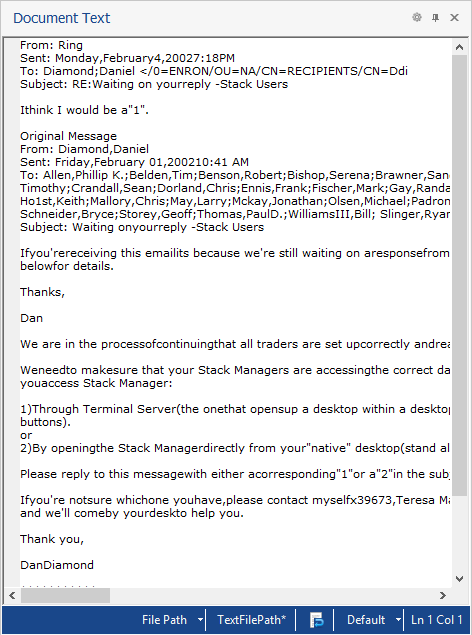
Document Text icons
 Select Field: Enables you to select the display mode and text field, replace ® with line breaks, and highlight text in the Document Text panel.
 Auto Hide: Collapses Document Text panel to a tab.
 Doc: Restores Document Text from tab to a panel.
 Close: Closes Document Text .
 Select Field: Enables you to select the display mode and text field, replace ® with line breaks, and highlight text in the Document Text panel.
 Auto Hide: Collapses Document Text panel to a tab.
 Doc: Restores Document Text from tab to a panel.
 Close: Closes Document Text .
To change the display mode
- Do one of the following:
- In the Document Text header, click the Select icon and select Display Mode
- In the Document Text footer, click the display mode.

- In the Document Text header, click the Select icon
- Choose from the following:
- File Path: Displays the contents of the file provided in that field.
- Field Content: Displays the value in that field.
To select a text field to view Document Text panel
- Do one of the following:
- In the Document Text header, click the Select icon and select Select Text Field.
- In the Document Text footer, click the currently selected text field.

- In the Document Text header, click the Select icon
- In the Select Field dialog box, select the text field you want to view in the Document Text panel.
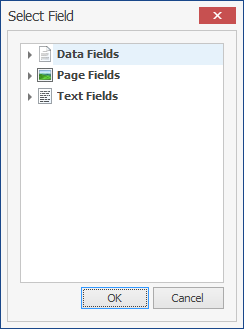
- Click OK.
To replace ® with new lines
- In the Document Text header, click the Select icon and select Replace New Lines.
- In the Document Text, any registered ® symbol is replaced with line breaks.
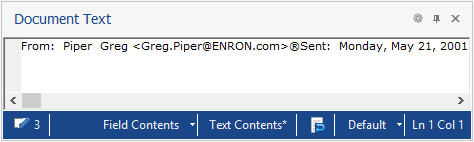
Replace New Lines - Cleared.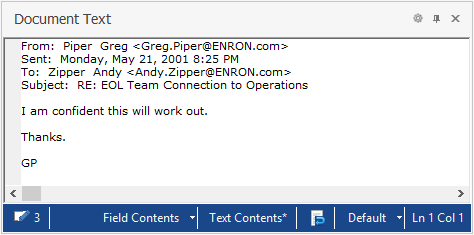
Replace New Lines - Selected.
To highlight text in the Document Panel
- In the Document Text header, click the Select icon and select Highlight Options > Enter Words.
- On the Text Options dialog box, enter the text you want highlighted and click Close.
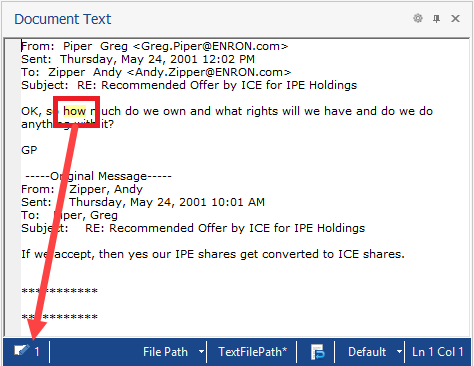
- Refresh the Document Text panel and view the highlighted text in the Document Panel and its number of occurrences is in the footer.
To enable or disable work wrap
Wrapping text formats the document text to fit the width of Document Text panel.
- In the Document Text footer, click the Wrap Text icon.

To change the display text encoding
The text viewer automatically detects encoding when loading text files.
- In the Document Text footer, select Auto-detect.
- Select the text encoding you want to view.

