
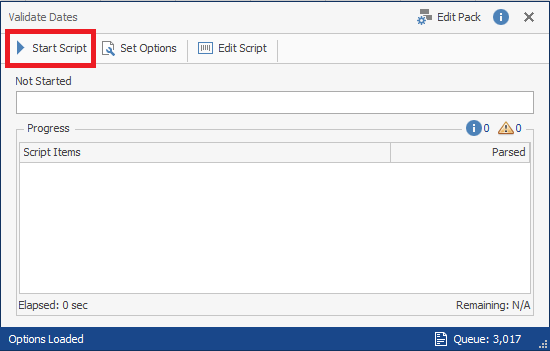
Each ReadySuite script has its own dialog box. The name of the script appears in the title bar.
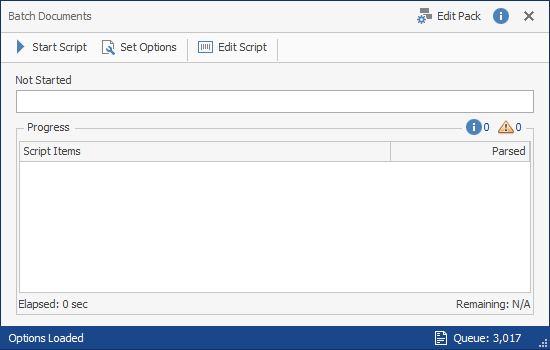
Start Script: Runs the selected script on the documents listed in the Queue.
Set Options: Opens the Script Options dialog box to define custom options for scripts. Custom options can be saved as preferences for future use.
Edit Script: Opens the selected script in the Script Editor. (Available when running a single script).
Edit Pack: Opens the scripts included in the script pack in the Script Editor. (Available when running a script pack).
Script Information  : Opens the Script Information dialog box with details about the script.
Queue: Displays the number of fields to be processed by the script.
To run a script
- In the ReadySuite ribbon, click the Scripts tab.
- Select the script you want to run using the Script Browser or a Library section category drop list.
- If filters are in use, the Select Data Source dialog box appears. Click one of the following:
- Project: Process all documents in the projects.
- Filtered: Process only documents matching the current filters.
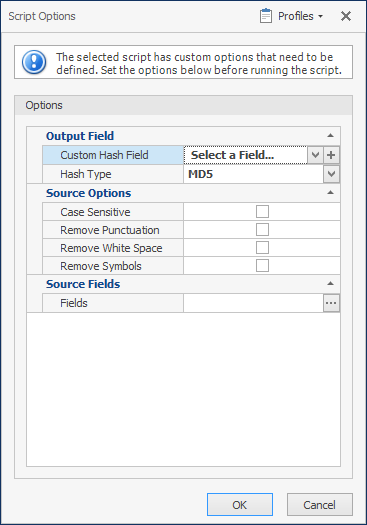
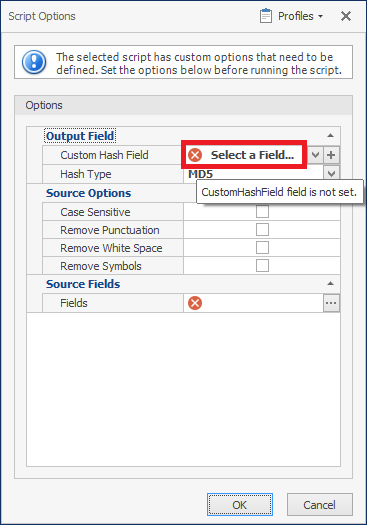
- If the script includes custom options, complete the Script Options dialog box as necessary.
Note: Hover over a script value to view a description (if present) of the setting.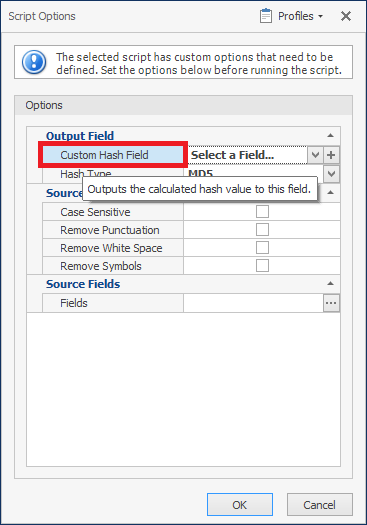
- Use the following buttons to complete the Script Options dialog box:
 : Open a drop list of available selections.
 : Open a dialog box (such as String Collection Editor, Open File, Selection Fields, or Mask Editor) to supply additional information.
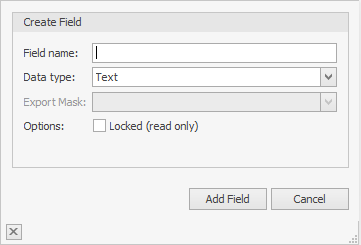
 : Create a new field by entering a Field name, selecting a Data type, selecting a Export Mask (if required), and choosing if field is Locked (read only).
 : Hide fields in section
 : Display fields in section.
- To save the options as a profile, click Profiles in the title bar and select Save. (For more information, see the Profiles).
- Click OK.
Note: If an error icon appears next to a script field, required information is missing or incorrect and must be validated before you can run the script. Hover over the field with an error to view value to view a description of the error.
- On the [script name] dialog box, click Start Script.
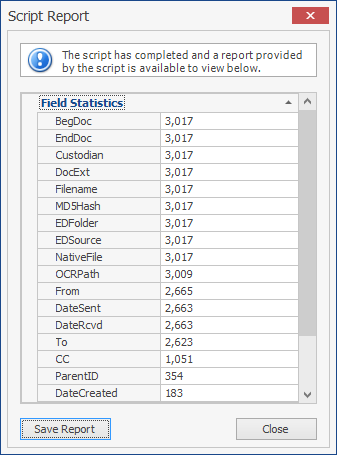
- If the script produces a report, view the Script Report window.
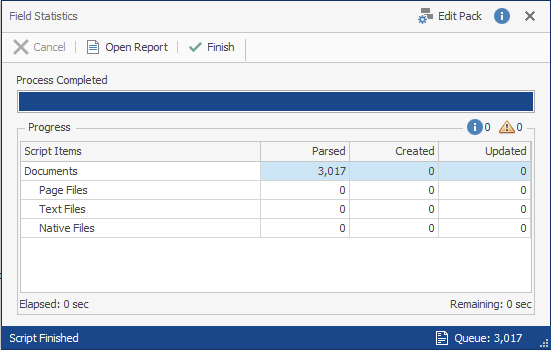
- View the results of the completed process and click Finish.
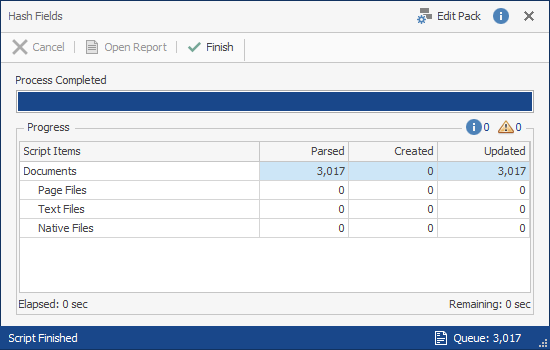
- If the script produced a report, click Open Report to view the report.
 : Open a drop list of available selections.
 : Open a dialog box (such as String Collection Editor, Open File, Selection Fields, or Mask Editor) to supply additional information.
 : Create a new field by entering a Field name, selecting a Data type, selecting a Export Mask (if required), and choosing if field is Locked (read only).
 : Hide fields in section
 : Display fields in section.

