
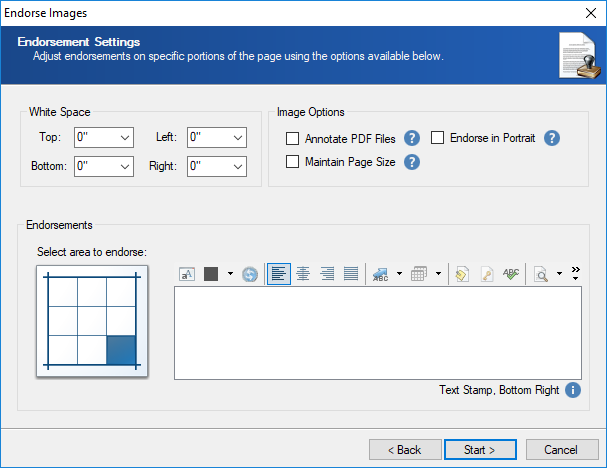
Endorsements can vary by font, size, orientation and color. You can apply bates numbers, page numbers, metadata fields and any custom text.
Note: Existing files will be overwritten during the endorsement process. Please create a backup before proceeding.
To endorse images
- Filter or mark the documents you want to work with as necessary.
- In the ReadySuite ribbon, click Process > Endorse Images to open the Endorse Images wizard.
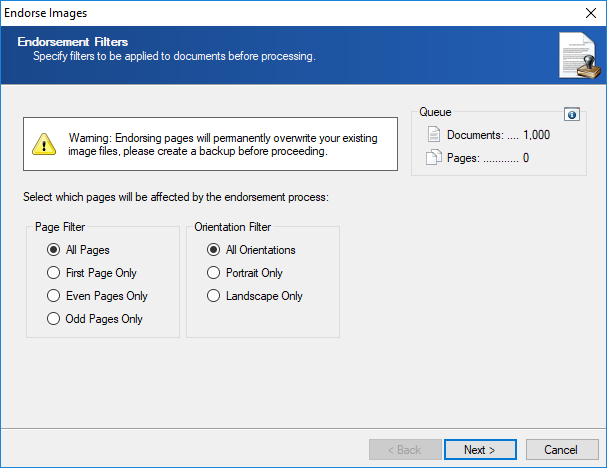
- On the Endorsement Filters page, select any Page Filter or Orientation Filter you want to apply.
- Page Filter: Apply endorsements to All Pages, First Page Only, Even Pages Only, or Odd Pages Only.
- Orientation Filter: Apply endorsements to All Orientations, Portrait Only, or Landscape Only.
- Click Next.
- On the Endorsement Settings page, adjust endorsements on specific portions of the page.
- Click Start.
