
To mark a file in the Document Grid View
- Click the row to the left of the checkbox in the Document Grid View of the file want to mark.
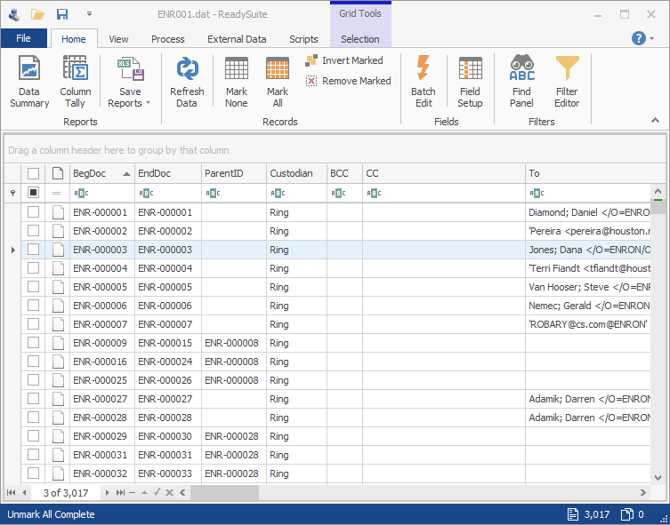
To mark multiple flies
- Hold the
Ctrlkey when clicking rows.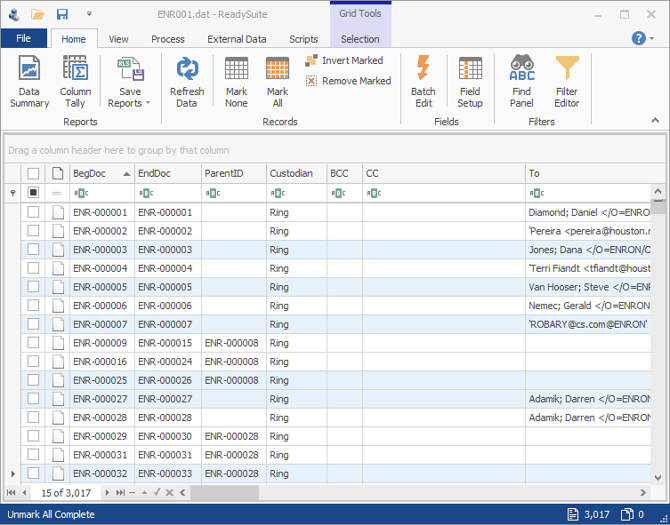
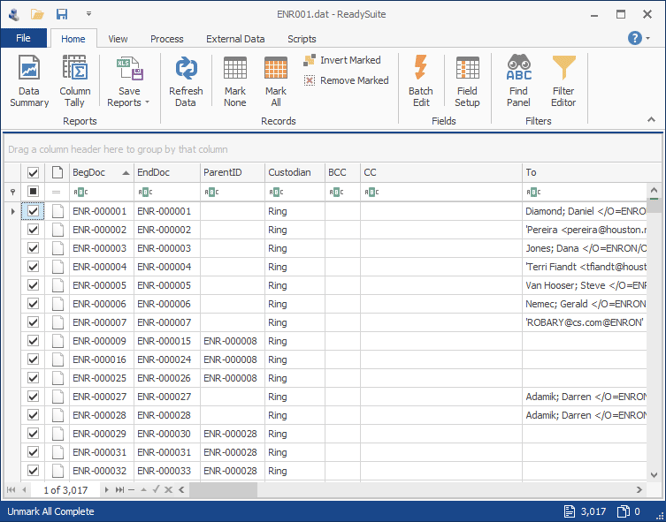
To mark all files in the Document Grid View
- Do one of the following:
- Click Home > Mark All.
- Click the cleared Checkbox column.
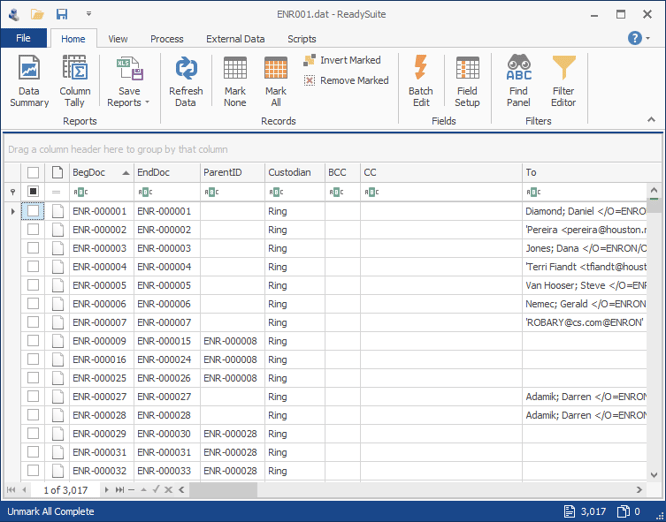
To clear all files in the Document Grid View
- Do one of the following:
- Click Home > Mark None.
- Click the selected Checkbox column.
To invert the mark and cleared files
- Click Home > Invert Mark None.
To clear the mark from files from the Document Grid View
- Click Home > Invert Mark None.