
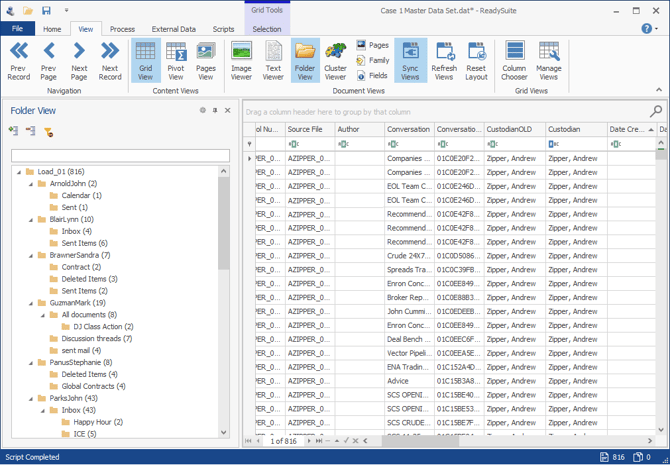
When you close and return to a ReadySuite project, the Folder View in use is retained.
To display the Folder View
- In the ReadySuite ribbon, click View > Folder View.
- Do either of the following:
- In the Folder View pane, click Select the folder path field.
- In the Folder View header, click the Select Field icon
 .
- In the Select Field dialog box, select the field you want to view as a folder.
- In the Folder View panel, right-click a folder to open the following short cut menu:
- Apply filter: View only the documents from the selected folder in the Document Grid View. The filter in use appears in the Document Grid View footer.
Note: You can also double-click on the folder name to apply a filter.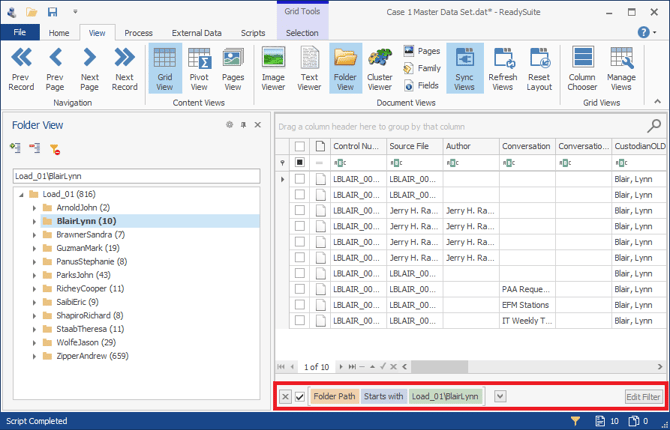
- Expand: Expand the current folder.
- Full Expand: Expand the entire Folder View.
- Full Collapse: Collapse the entire Folder View.
 .
Folder View icons
- Select Field: Open the Select Field dialog box.
 Auto Hide: Collapse Folder View panel to a tab.
 Doc: Restore Folder View from tab to a panel.
 Close: Close Folder View.
 Expand All: Expand the entire Folder View.
 Collapse All: Collapse the entire Folder View.
 Clear Filter: Remove current filter in use.
 Auto Hide: Collapse Folder View panel to a tab.
 Doc: Restore Folder View from tab to a panel.
 Close: Close Folder View.
 Expand All: Expand the entire Folder View.
 Collapse All: Collapse the entire Folder View.
 Clear Filter: Remove current filter in use.